Customize the Quick Access Toolbar
Notes:
-
You cannot increase the size of the buttons
representing the commands by an option in Microsoft Office. The only way
to increase the size of the buttons is to lower the screen resolution
you use.
-
You cannot display the Quick Access Toolbar on multiple lines.
-
Only commands can be added to the Quick Access
Toolbar. The contents of most lists, such as indent and spacing values
and individual styles, which also appear on the ribbon, cannot be added
to the Quick Access Toolbar. However, you can customize the ribbon
to personalize the ribbon the way that you want it. For example, you
can create custom tabs and custom groups to contain your frequently used
commands.
What do you want to do?
-
Add a command to the Quick Access Toolbar
-
Show me how to add commands to the Quick Access Toolbar
-
Add a command to the Quick Access Toolbar that isn’t on the ribbon
-
Remove a command from the Quick Access Toolbar
-
Change the order of the commands on the Quick Access Toolbar
-
Group the commands by adding a separator between the commands
-
Move the Quick Access Toolbar
-
Show me how to move the Quick Access Toolbar
-
Customize the Quick Access Toolbar by using the Options command
-
Reset the Quick Access Toolbar to the default settings
-
Export a customized Quick Access Toolbar
-
Import a customized Quick Access Toolbar
-
Why am I seeing a green ball?
Add a command to the Quick Access Toolbar
-
On the ribbon, click the appropriate tab or group to display the command that you want to add to the Quick Access Toolbar.
-
Right-click the command, and then click Add to Quick Access Toolbar on the shortcut menu.
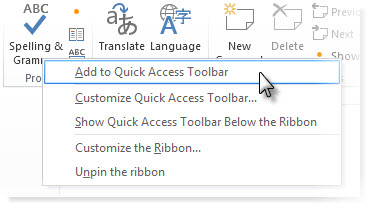
Note: In the 2007 release of
Office, when you right clicked commands on the menu that you saw after
you clicked the Microsoft Office Button, you had the option to add the
command to the Quick Access Toolbar. In Office 2010, you do not have
this option after you click the File tab.
Show me how to add commands to the Quick Access Toolbar
Watch a video that shows you how to add commands to the Quick Access Toolbar at Video: Add commands to the Quick Access Toolbar.Top of Page
Add a command to the Quick Access Toolbar that isn’t on the ribbon
-
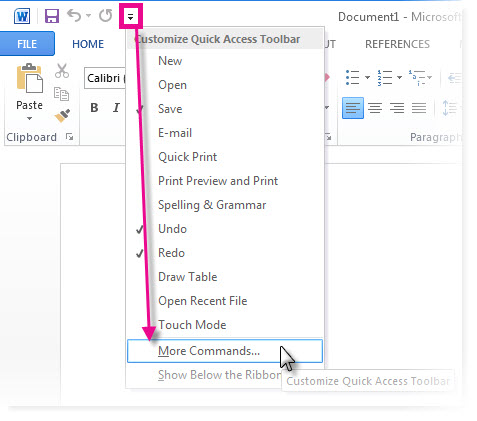
Click Customize the Quick Access Toolbar > More Commands.
-
In the Choose commands from list, click Commands Not in the Ribbon.
-
Find the command in the list, and then click Add.
Remove a command from the Quick Access Toolbar
-
Right-click the command you want to remove from the Quick Access Toolbar, and then click Remove from Quick Access Toolbar on the shortcut menu.
Change the order of the commands on the Quick Access Toolbar
-
Right-click the Quick Access Toolbar, and then click Customize the Quick Access Toolbar on the shortcut menu.
-
Under Customize Quick Access Toolbar, click the command you want to move, and then click the Move Up or Move Down arrow.
Group the commands by adding a separator between the commands
You can group the commands by using the separator to make the Quick Access Toolbar appear to have sections.-
Right-click the Quick Access Toolbar, and then click Customize the Quick Access Toolbar on the shortcut menu.
-
In the Choose commands from list, click Popular Commands.
-
Click <Separator>, and then click Add.
-
To place the separator where you want it, click the Move Up or Move Down arrow.
Move the Quick Access Toolbar
The Quick Access Toolbar can be located in one of two places:-
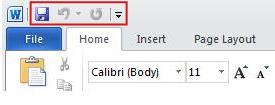
Upper-left corner next to the icon for a Microsoft Office program, for example, next to the Word icon
 . (default location)
-
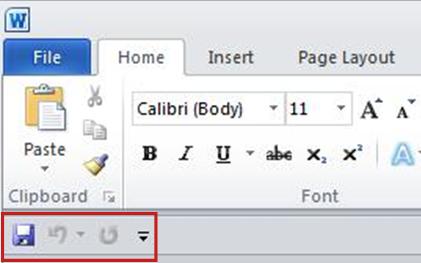
Below the ribbon.
-
Click Customize Quick Access Toolbar
 .
. -
In the list, click Show Below the Ribbon or Show Above the Ribbon.
Show me how to move the Quick Access Toolbar
Watch a video that shows you how to move the Quick Access Toolbar at Video: Move the Quick Access Toolbar.Top of Page
Customize the Quick Access Toolbar by using the Options command
You can add, remove, and change the order of the commands on the Quick Access Toolbar by using the Options command.-
Click the File tab.
-
Under Help, click Options.
-
Click Quick Access Toolbar.
-
Make the changes you want.
Reset the Quick Access Toolbar to the default settings
-
Right-click the Quick Access Toolbar, and then click Customize the Quick Access Toolbar on the shortcut menu.
-
In the Customize the Quick Access Toolbar window, click Reset Defaults, and then click Reset only Quick Access Toolbar.
Export a customized Quick Access Toolbar
You can export your ribbon and Quick Access Toolbar customizations into a file that can be imported and used by a coworker or on another computer.-
Click the File tab.
-
Under Help, click Options.
-
Click Quick Access Toolbar.
-
Click Import/Export, and then click Export all customizations.
Top of Page
Import a customized Quick Access Toolbar
You can import customization files to replace the current layout of the ribbon and Quick Access Toolbar. By being able to import the customization, you can keep Microsoft Office programs looking the same as your coworkers or from computer to computer.
Important: When you import a
ribbon customization file, you lose all prior ribbon and Quick Access
Toolbar customizations. If you think that you might want to revert to
the customization you currently have, you should export them before
importing any new customizations.
-
Click the File tab.
-
Under Help, click Options.
-
Click Quick Access Toolbar.
-
Click Import/Export, and then click Import customization file.
Top of Page
Why am I seeing a green ball?
You see a green ball if you added a custom group or command to the Quick Access Toolbar after you customized the ribbon, but didn't assign an icon to represent that custom group or command.The icon is used if you do the following:
-
Add the custom group to the Quick Access Toolbar.
-
To help differentiate between your own customized ribbon and the default ribbon.
Add an icon to represent the custom group or command
-
Click the File tab.
-
Under Help, click Options.
-
Click Customize Ribbon.
-
In the Customize the Ribbon window, under the Customize the Ribbon list, click the custom group or command that you added.
-
Click Rename, and then in the Symbol list, click an icon.
-
In the Rename dialog box, click OK.
-
To see and save your customizations, click OK.
Tidak ada komentar:
Posting Komentar